
Every small business owner has a stack of paper somewhere. Maybe it’s literal — a filing cabinet stuffed with vendor invoices from 2023. Maybe it’s digital — a shared drive with 400 files named “Invoice_FINAL_v2_revised.pdf.” Either way, the problem is the same: documents are eating your time, your attention, and sometimes your money.
AI document processing changes that equation. Instead of manually reading, sorting, entering, and filing paperwork, you set up systems that do it automatically. The AI reads the document, extracts the relevant data, routes it to the right place, and flags anything that needs human review. You spend your time on the exception — not the routine.
In 2026, these tools are no longer enterprise-only. They’re accessible, affordable, and can be integrated into the systems most small businesses already use. Here’s how to put them to work.
What AI Document Processing Actually Does
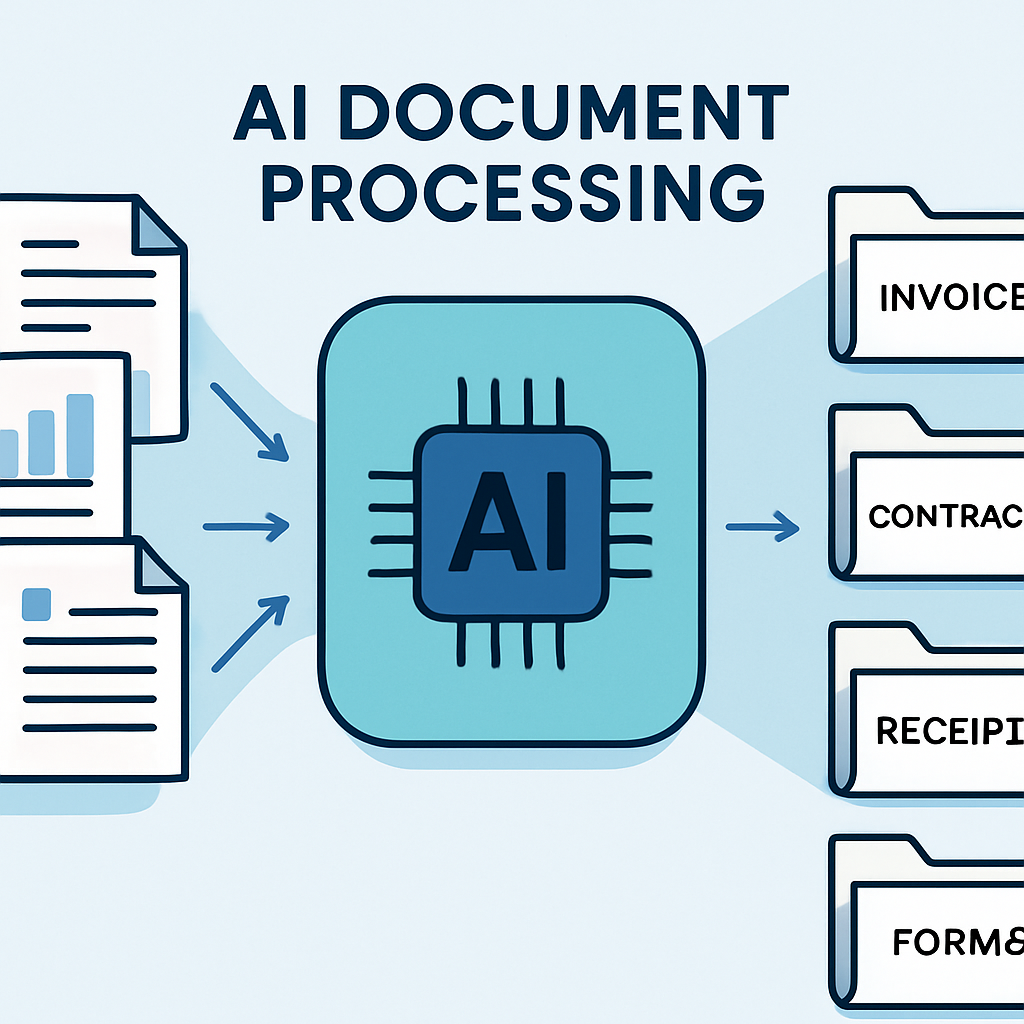
“Document processing” sounds vague, so let’s get specific. AI document processing tools typically handle three core tasks:
Extraction: The AI reads a document and pulls out specific pieces of information. From an invoice: vendor name, invoice number, line items, amounts, due date. From a contract: party names, key dates, payment terms, termination clauses. From a form: customer name, contact info, service requested.
Classification: The AI categorizes incoming documents automatically. Is this a vendor invoice, a client contract, an insurance form, or a tax document? Classification determines where the file goes and what happens next.
Routing and action: Once extracted and classified, the document — or its data — gets sent somewhere useful. Invoice data gets entered into your accounting system. A signed contract triggers a welcome email. An insurance form gets forwarded to the right team member.
Together, these three steps replace hours of manual data entry, filing, and coordination every week.
Where Small Businesses Lose the Most Time
Before choosing tools, it helps to diagnose where document friction is actually costing you. Here are the most common pain points for small businesses:
Accounts Payable
Vendor invoices arrive by email, by mail, sometimes by fax. Someone has to open each one, verify the amount, enter it into QuickBooks or Xero, and file the original. For a business with 50+ invoices a month, this can consume 5–8 hours of staff time weekly — and still produce errors.
AI extraction tools can read invoices, pull the data automatically, and push it directly into your accounting software. Human review becomes the exception for flagged discrepancies, not the default for every document.
Client Contracts and Agreements
Service businesses live and die by contracts. But managing them manually — tracking which clients have signed, which are pending, which need renewal — is surprisingly time-intensive. An AI system can parse signed documents, extract key dates, and update your CRM automatically so nothing falls through the cracks.
Patient and Client Intake Forms
Healthcare, aesthetics, legal, and financial businesses all deal with intake forms. Manually re-entering patient information from a PDF into a practice management system is not just tedious — it’s a source of errors that can have real consequences. AI can extract that data and push it where it needs to go, with the human reviewing the result rather than doing the entry.
Employee Onboarding Documents
New hire paperwork — W-4s, direct deposit forms, benefit elections, I-9 verification — generates a significant document burden every time you bring someone on. Automating the collection, extraction, and routing of these documents eliminates a perennial HR headache.
Expense Reports and Receipts
Employees photograph receipts. Those photos need to be categorized, matched to expense categories, and entered into your accounting system. OCR-powered AI tools handle this at scale, integrating with accounting platforms and flagging receipts that don’t match policy.
The Core Technologies Behind It
You don’t need to understand the technology to use it, but knowing what’s happening under the hood helps you evaluate tools and troubleshoot edge cases.
OCR (Optical Character Recognition): The foundational technology that reads text from images and PDFs. Modern OCR — especially AI-powered OCR — handles handwriting, unusual fonts, low-quality scans, and multi-language documents far better than older tools.
NLP (Natural Language Processing): After OCR reads the text, NLP understands it. It knows that “Inv #” and “Invoice Number” and “Bill No.” all mean the same field. It can extract meaning from unstructured text, not just parse consistent formats.
Machine Learning Models: The more documents a system processes, the better it gets at understanding your specific document types and formats. Modern document AI tools come pre-trained on millions of documents and improve with use.
Template-Based Extraction: For highly consistent document types (like a specific vendor’s invoices, or your own client contracts), you can define templates that tell the AI exactly where to find each field. This delivers near-perfect accuracy for structured documents.
Tools That Work for Small Businesses
Docparser ($39–$149/month)
Docparser specializes in data extraction from PDFs and scanned documents. You set up parsing rules for specific document types, and it pushes the extracted data to Google Sheets, Excel, Salesforce, or 3,000+ apps via Zapier. Strong for invoice processing, purchase orders, and shipping documents.
Best for: Businesses with consistent, recurring document types (invoices, order forms).
Adobe Acrobat AI ($23/month per user)
Adobe has built AI features directly into Acrobat, including AI Assistant that can answer questions about documents, summarize contracts, and extract key information. Available on the Adobe Acrobat AI subscription. Works well for reviewing and extracting from contracts and agreements.
Best for: Businesses already in the Adobe ecosystem, contract-heavy workflows.
Rossum ($starts at $499/month for teams)
Rossum is built specifically for accounts payable automation. It reads invoices from any vendor in any format, extracts line items, and integrates with ERP and accounting systems. Designed for organizations processing hundreds of invoices monthly. The AI learns from corrections over time.
Best for: Businesses with high invoice volume and existing accounting infrastructure.
Microsoft Azure Form Recognizer / Document Intelligence
If you’re building a custom workflow, Azure’s Document Intelligence API provides pre-built models for invoices, receipts, tax forms, and IDs — plus the ability to train custom models for unique document types. Powerful and cost-effective at scale, but requires technical setup.
Best for: Businesses with development resources who need a custom integration.
Zapier + OpenAI (from $20/month combined)
For businesses that want a no-code approach to custom document workflows: Zapier can trigger on new email attachments or Google Drive uploads, pass the document content to OpenAI’s API for extraction, and then route the extracted data to your tools of choice. Requires some setup but is flexible enough to handle many document types.
Best for: Businesses that want control over the workflow without hiring developers.

Building Your First Document Automation Workflow
Here’s a practical framework for getting started without getting overwhelmed.
Step 1: Audit Your Document Flows
Spend one week tracking every document that touches your business. Note:
- What type of document is it?
- How does it arrive (email, mail, upload, form)?
- What information do you extract from it?
- Where does that information need to go?
- How long does processing take?
- How often do errors occur?
This audit reveals your highest-value automation opportunities. You’re looking for documents that are (a) high volume, (b) consistent in format, and (c) currently processed manually.
Step 2: Start with One High-Volume Document Type
Don’t try to automate everything at once. Pick your biggest pain point — typically vendor invoices or client intake forms — and build a working automation for that single document type.
Getting one flow right gives you confidence, proves the approach, and often pays for the tool subscription many times over in recovered staff hours.
Step 3: Set Up Extraction and Validation Rules
Whatever tool you choose, configure it to extract the fields you need — and to flag anomalies. For example:
- If the invoice total doesn’t match the sum of line items, flag for review
- If a client intake form is missing required fields, send an automated follow-up
- If a contract is missing a signature date, route to a specific team member
Validation rules prevent garbage from flowing downstream into your accounting system or CRM.
Step 4: Connect to Your Systems of Record
The extracted data is only valuable if it ends up somewhere useful. Common destinations:
- Accounting software (QuickBooks, Xero, FreshBooks) for invoice data
- CRM (HubSpot, GoHighLevel, Salesforce) for client information and contract status
- Project management (Asana, ClickUp, Monday.com) for task creation based on document triggers
- Google Sheets for lightweight tracking and review
If you’re already using CRM automation, document processing integrates naturally — client contracts trigger workflow steps, intake forms create new contact records, and signed agreements update deal stages automatically.
Step 5: Build a Human Review Layer
AI document processing isn’t perfect. Documents with unusual formats, poor scan quality, or unusual content will occasionally produce extraction errors. Your workflow should:
- Route low-confidence extractions to a review queue
- Show the reviewer both the original document and the extracted data side by side
- Allow single-click approval or correction
- Track correction patterns so the model can improve
The goal is to make human review fast (30 seconds per document, not 5 minutes), not to eliminate it entirely.
Connecting Document Processing to Your Broader Automation Stack
AI document processing doesn’t operate in isolation. The real power emerges when it’s connected to the rest of your business automation:
Automated follow-up sequences: A signed contract can trigger an automated onboarding sequence — welcome email, next steps, first appointment — without any human action required.
Invoicing and payment automation: When an invoice is processed and approved, it can trigger automatic payment scheduling or approval workflows, closing the loop between receiving and paying bills.
Small business automation platforms like Zapier or Make: These are the connective tissue between your document processing tool and your other apps. Build multi-step workflows that move data from documents into your entire business stack.
AI sales funnel automation: For service businesses, processed client intake forms can automatically score, qualify, and route new leads — turning a document step into a sales enablement step.
The Real ROI: Time, Accuracy, and Scale
The value of document automation is clearest when you do the math:
Time savings: If your business processes 100 documents a week and each takes 5 minutes of manual handling, that’s 8+ hours of staff time per week. Even if AI automation handles 80% of them perfectly, you’ve recaptured 6+ hours — time that can go toward client work, sales, or simply not being overwhelmed.
Error reduction: Manual data entry has a human error rate of 1–5%. For invoices, those errors mean incorrect payments, vendor disputes, and reconciliation headaches. For patient data, they can have compliance implications. AI extraction, properly validated, runs at accuracy rates of 95–99%+ on clean documents.
Scalability: Manual document processing scales linearly with volume — twice the documents means twice the staff hours. Automated processing scales much more cheaply, which means you can grow without proportionally growing your administrative overhead.

Common Mistakes to Avoid
Trying to automate everything at once. Document processing projects that try to cover every document type from day one typically stall. Start narrow, get one flow working well, then expand.
Skipping the validation layer. Automating without review gates means errors propagate into your systems automatically. A quick review queue prevents downstream problems.
Choosing tools without integration in mind. The best document extraction tool in the world is useless if you can’t get the data into your accounting system or CRM. Verify integrations before committing.
Assuming AI is always right. Modern AI document tools are impressive, but they fail on unusual formats, poor quality scans, and edge cases. Build your workflow assuming occasional errors, not assuming perfection.
Ignoring document security. Documents often contain sensitive data — client information, financial details, employee records. Make sure any tool you use offers encryption at rest and in transit, access controls, and compliance with applicable regulations (HIPAA, SOC 2, etc.).
Frequently Asked Questions
Do I need technical skills to set up document automation? For most small business use cases, no. Tools like Docparser and Zapier are designed for non-technical users. You need to understand your document types and desired workflows, but you don’t need to write code.
Can AI handle handwritten documents? Modern AI can handle handwriting with reasonable accuracy, especially for structured fields like dates, amounts, and names. Accuracy decreases significantly for messy or unusual handwriting. For high-accuracy requirements on handwritten forms, consider requiring typed or digital submission instead.
What about document security and compliance? Most enterprise-grade document processing tools offer SOC 2 compliance and encrypt data in transit and at rest. For healthcare businesses, look specifically for HIPAA-compliant vendors. Always review a vendor’s security documentation before connecting it to sensitive data.
How long does setup take? For a single document type with a defined workflow, expect 2–4 hours for initial setup with most no-code tools, plus a testing period of 1–2 weeks to refine extraction accuracy. More complex multi-type workflows take longer.
What if my vendors use very different invoice formats? This is where AI excels over template-based tools. Modern AI extraction models handle format variation well — they understand the semantic meaning of fields, not just their position on the page. Tools like Rossum and Azure Document Intelligence are specifically designed for this use case.
Document processing is one of those automation investments that pays off fast, visibly, and permanently. You set it up once, and you stop touching that category of work manually — forever. For a small business where every hour matters, that’s not a small thing.
If you’re ready to stop drowning in paperwork and start building the kind of automated infrastructure that lets you grow without grinding, reach out to Monsoft Solutions. We help small businesses identify their highest-leverage automation opportunities and build systems that actually work.