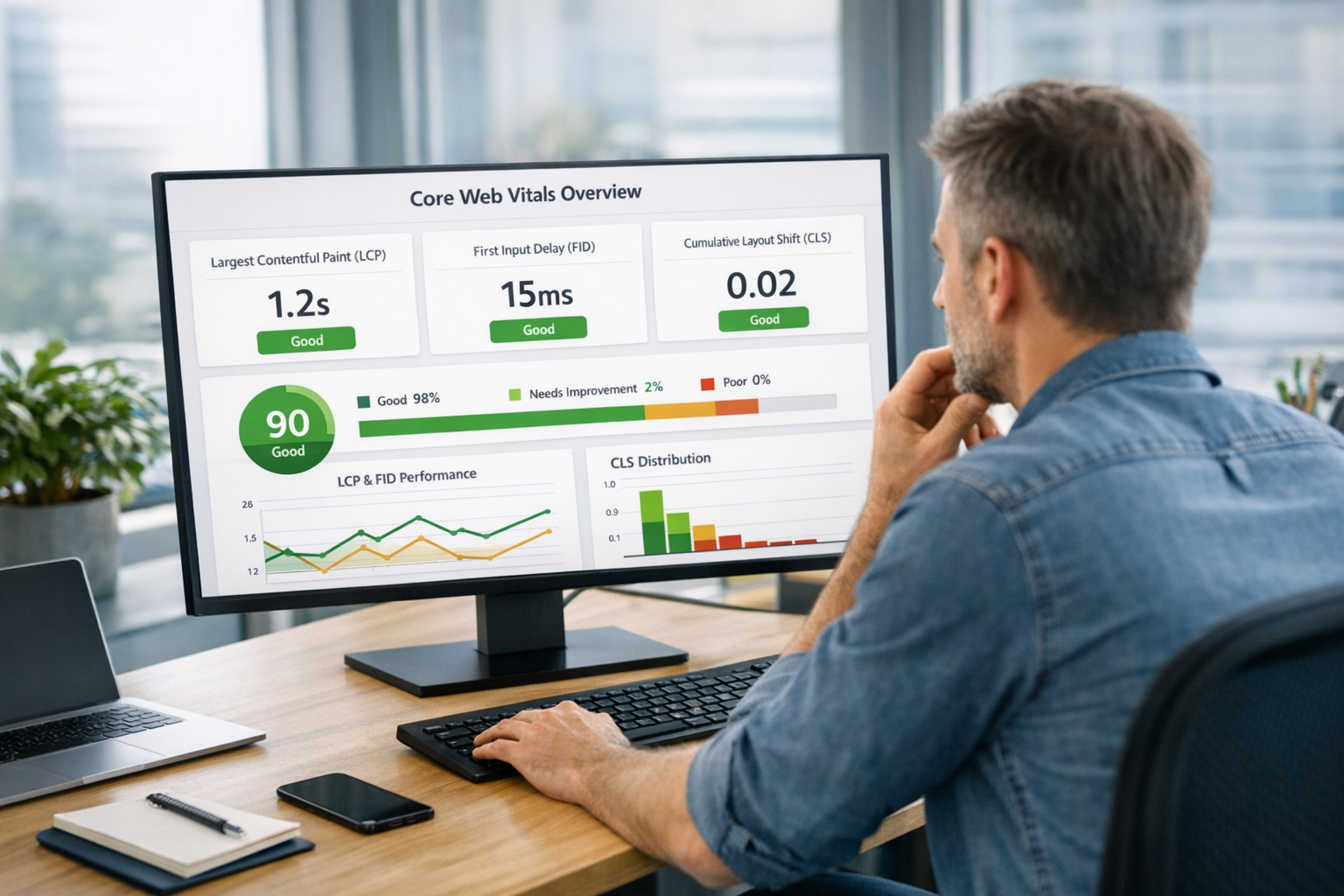
Your website has three seconds to make an impression. According to Google, 53% of mobile visitors abandon a site that takes longer than three seconds to load. For small businesses competing for local customers—and aesthetic practices converting high-value consultations—those three seconds can mean the difference between a new customer and a lost opportunity.
Website speed isn’t just about user experience anymore. Since Google’s Core Web Vitals became a ranking factor, page speed directly impacts where you appear in search results. A slow website costs you twice: once when visitors leave, and again when Google pushes you down in rankings.
The good news? Most speed issues are fixable with straightforward optimizations. This guide covers the essential techniques that consistently deliver results for both local businesses and medical practices.
What Is Website Speed and Why It Matters
Website speed refers to how quickly your web pages load and become interactive for visitors. It’s measured through specific metrics that Google uses to evaluate user experience, known as Core Web Vitals.
The impact goes beyond convenience:
- Conversion rates: A one-second delay in page load time reduces conversions by 7% on average
- Search rankings: Google uses page speed as a ranking signal for both desktop and mobile searches
- Bounce rates: Slow pages experience bounce rates up to 90% higher than fast-loading pages
- Customer trust: 79% of shoppers who experience slow loading say they won’t return
For local service businesses, every second counts. Someone searching “plumber near me” at 10 PM isn’t going to wait around. They’ll tap the next result. The same applies to aesthetic practices—potential patients researching procedures expect the same seamless experience they get from major websites.
Understanding Core Web Vitals
Google’s Core Web Vitals are three specific metrics that measure real-world user experience:
Largest Contentful Paint (LCP)
LCP measures how long it takes for the main content of a page to load. This is typically your hero image or main heading.
- Good: Under 2.5 seconds
- Needs Improvement: 2.5 to 4 seconds
- Poor: Over 4 seconds
Interaction to Next Paint (INP)
INP measures how quickly your page responds when someone clicks a button, fills out a form, or interacts with your site.
- Good: Under 200 milliseconds
- Needs Improvement: 200 to 500 milliseconds
- Poor: Over 500 milliseconds
Cumulative Layout Shift (CLS)
CLS measures visual stability—whether elements on your page jump around as it loads. You’ve experienced poor CLS when you try to click a button and the page shifts, causing you to click something else.
- Good: Under 0.1
- Needs Improvement: 0.1 to 0.25
- Poor: Over 0.25
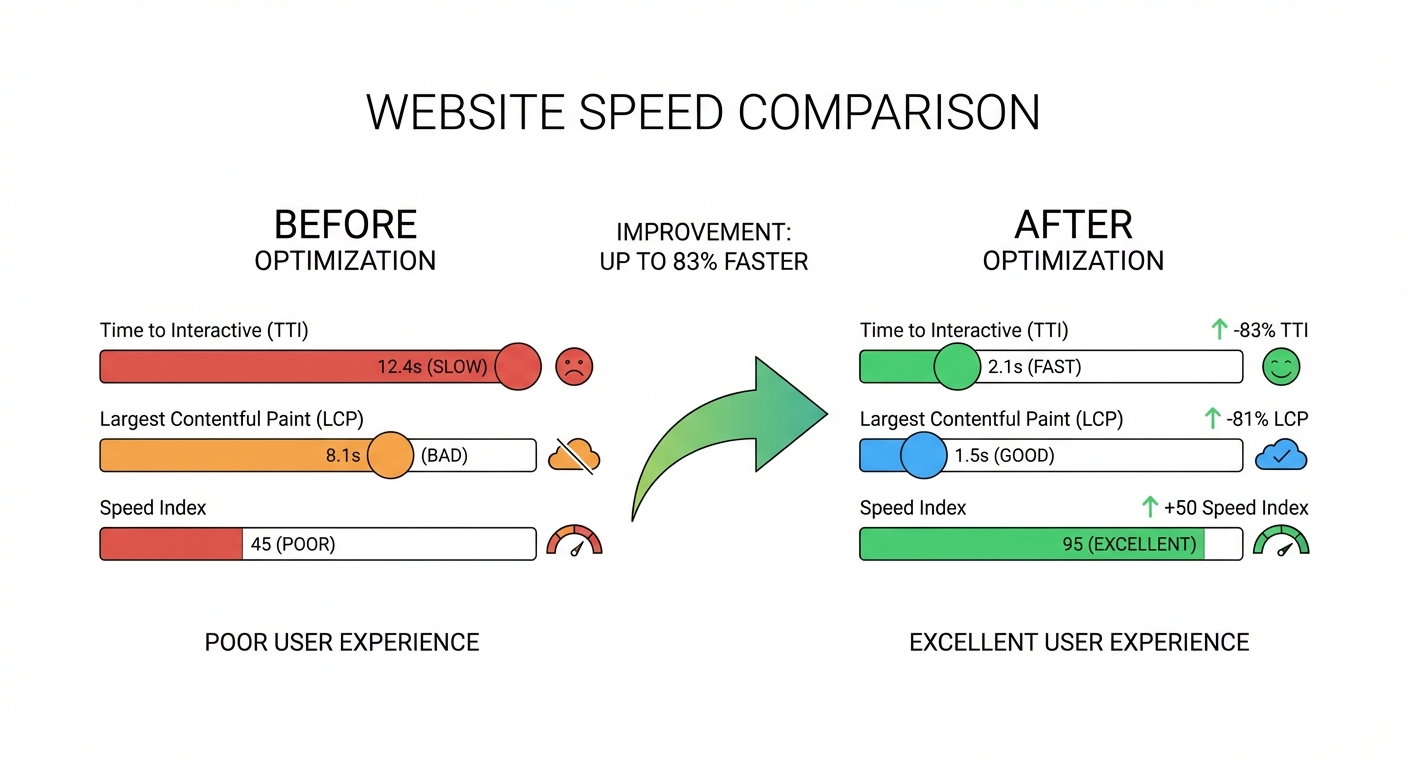
How to Test Your Website Speed
Before optimizing, you need to know where you stand. These free tools provide actionable insights:
Google PageSpeed Insights
Visit pagespeed.web.dev and enter your URL. You’ll get:
- Core Web Vitals scores for mobile and desktop
- Specific opportunities for improvement
- Diagnostics showing what’s slowing you down
Google Search Console
If you’ve set up Search Console (and you should), check the Core Web Vitals report under Experience. This shows real-world data from actual visitors.
GTmetrix
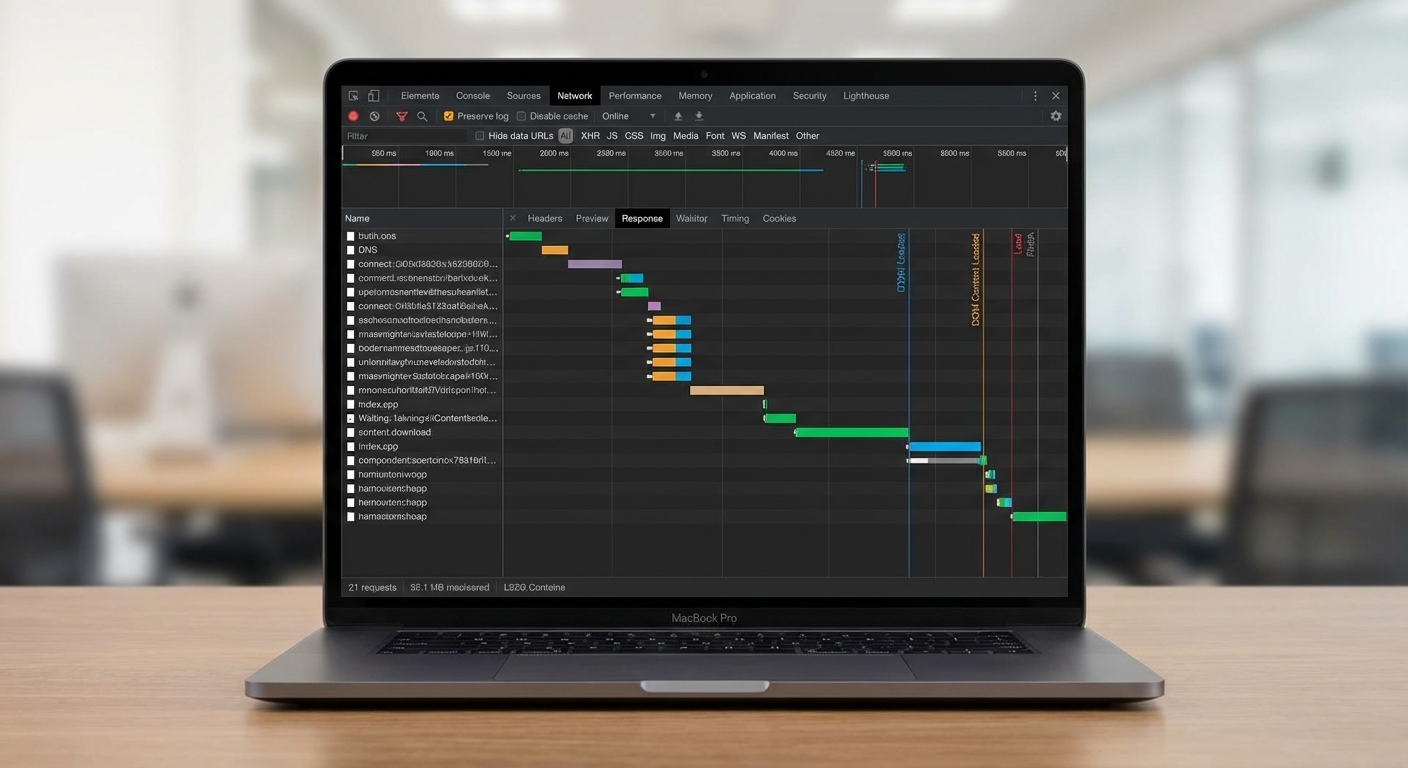
For more detailed analysis, GTmetrix provides waterfall charts showing exactly when each resource loads. This helps identify which files cause delays.
Pro tip: Always test on mobile first. That’s where most of your visitors are, and mobile performance is typically worse than desktop.
Essential Speed Optimization Techniques
1. Optimize Your Images
Images are the biggest culprit for slow websites. A single unoptimized image can add megabytes to your page load.
What to do:
- Compress images before uploading. Tools like TinyPNG or Squoosh can reduce file sizes by 60-80% without visible quality loss
- Use modern formats like WebP, which provides better compression than JPEG or PNG
- Specify dimensions in your HTML to prevent layout shift
- Lazy load images below the fold so they only load when users scroll to them
For aesthetic practices with before/after galleries, image optimization is critical. Those high-resolution procedure photos can devastate page speed if not properly compressed.
2. Minimize HTTP Requests
Every file your page loads—images, stylesheets, scripts, fonts—requires a separate HTTP request. Reducing these requests speeds up your site.
How to reduce requests:
- Combine CSS files into one stylesheet
- Combine JavaScript files where possible
- Use CSS sprites for small icons
- Remove unused plugins and scripts
Most WordPress sites load 30+ scripts from various plugins. Audit your plugins regularly and remove anything you don’t actively use.
3. Enable Browser Caching
When someone visits your site, their browser downloads all your files. With caching enabled, returning visitors load files from their local storage instead of downloading them again.
Set cache expiration times:
- Static assets (images, CSS, JS): 1 year
- HTML pages: 1 day to 1 week depending on how often content changes
4. Use a Content Delivery Network (CDN)
A CDN stores copies of your website on servers around the world. Visitors load content from the server closest to them, reducing load times.
For Southwest Florida businesses serving local customers, this matters less for local traffic. But if you’re an aesthetic practice attracting patients from across the country (or internationally), a CDN significantly improves performance for distant visitors.
Popular CDN options:
- Cloudflare (free tier available)
- Fastly
- Amazon CloudFront
5. Optimize Your Hosting
Your hosting provider matters more than most people realize. Cheap shared hosting might save money but often means slow response times and frequent downtime.
Signs you’ve outgrown your hosting:
- Time to First Byte (TTFB) consistently over 500ms
- Slow admin dashboard
- Frequent “connection timed out” errors
- Slow response during peak traffic
Consider upgrading to:
- Managed WordPress hosting for WordPress sites (WP Engine, Kinsta)
- VPS or cloud hosting for custom applications
- Static site hosting for informational sites (Vercel, Netlify)
6. Minimize Render-Blocking Resources
CSS and JavaScript files in your HTML head can block the page from rendering until they fully load.
Solutions:
- Move non-critical JavaScript to the bottom of your page
- Use
asyncordeferattributes on script tags - Inline critical CSS needed for above-the-fold content
- Load non-critical CSS asynchronously
7. Reduce Server Response Time
Slow server response means everything else is delayed. Common causes include:
- Slow database queries: Optimize queries and add database indexing
- Inadequate resources: Upgrade hosting if CPU or memory is maxed out
- No caching: Implement server-side caching (Redis, Memcached)
- Bloated CMS: Clean up unused themes, plugins, and database tables
For WordPress sites, server-side caching plugins like WP Super Cache or W3 Total Cache can dramatically improve response times.
Speed Optimization for Different Platforms
WordPress
WordPress powers over 40% of websites but can become slow without proper optimization:
- Choose a lightweight theme designed for performance
- Limit plugins to essentials—each plugin adds overhead
- Use a caching plugin (WP Super Cache, LiteSpeed Cache)
- Optimize database regularly with WP-Optimize
- Consider managed hosting that handles optimization automatically
Shopify
Shopify handles many optimizations automatically, but you can still improve:
- Compress and optimize product images
- Limit apps—uninstall anything not actively used
- Use a lightweight, well-coded theme
- Avoid custom code that blocks rendering
Custom Sites
For custom-built websites, you have more control:
- Use modern frameworks with built-in optimization (Astro, Next.js)
- Implement static generation where possible
- Set up proper build-time image optimization
- Configure CDN and edge caching
Measuring Results
After implementing optimizations, verify improvements with:
- Re-test with PageSpeed Insights and compare scores
- Check Search Console Core Web Vitals report (data updates monthly)
- Monitor real user metrics with tools like Google Analytics or Vercel Analytics
- Track conversion rates to see business impact

Expect to see improvements in:
- Lower bounce rates
- Longer session durations
- Higher conversion rates
- Improved search rankings (over time)
Common Speed Optimization Mistakes
Over-optimizing images: Compression is good, but aggressive compression creates blurry images that hurt credibility—especially important for aesthetic practices showing procedure results.
Too many optimization plugins: Ironically, installing five different optimization plugins often makes things worse. Choose one comprehensive solution.
Ignoring mobile: Desktop might look fast, but if 70% of your traffic is mobile and mobile experience is poor, you’re losing customers.
Not testing after changes: Always verify that optimizations actually improved speed. Some changes can backfire.
Neglecting above-the-fold content: Focus on loading what visitors see first. Below-the-fold content can load later.
When to Get Professional Help
DIY optimization works for basic improvements, but some situations warrant professional assistance:
- Custom development for complex speed issues
- Migrating to faster hosting infrastructure
- Rebuilding a site on a modern, faster platform
- Ongoing performance monitoring and optimization
Our web development services include performance optimization as a core component of every project. We build sites that are fast from the start, not fixed after the fact.
Frequently Asked Questions
How fast should my website load?
Aim for under 3 seconds on mobile devices. Google’s Core Web Vitals target is LCP under 2.5 seconds. However, even small improvements matter—every 100ms reduction in load time can increase conversions.
Does website speed really affect SEO?
Yes. Google confirmed page experience, including Core Web Vitals, as a ranking factor. While content relevance remains most important, speed can be the tiebreaker between similar sites competing for the same keywords.
How often should I test my website speed?
Test after any major changes to your site. For ongoing monitoring, monthly checks are sufficient unless you’re actively working on optimization. Use Search Console’s Core Web Vitals report for real-world data.
Why is my mobile speed worse than desktop?
Mobile devices have less processing power and often use slower network connections. Additionally, mobile users frequently connect via cellular data rather than WiFi. Always optimize for mobile first.
Take Action This Week
Website speed optimization isn’t a one-time task—it’s ongoing maintenance. Start with these immediate actions:
- Test your current speed at pagespeed.web.dev
- Compress your largest images (check PageSpeed for specific recommendations)
- Remove unused plugins or scripts slowing down your site
- Set up browser caching if not already configured
These four steps typically produce the biggest improvements with the least effort.
If your website needs more than quick fixes—or if you’d rather focus on running your business while experts handle the technical details—we’re here to help. Our team builds and optimizes websites specifically for local businesses and aesthetic practices. Get in touch to discuss your site’s performance.
Related reading:
- Landing Page Optimization Guide — Convert more visitors once they arrive
- SEO for Small Business in 2026 — Complete search engine optimization strategies
- Local Schema Markup Guide — Help Google understand your business better