
Your website might be turning away 26% of potential customers—and you don’t even know it. That’s the percentage of American adults living with a disability who may struggle to navigate inaccessible websites. Beyond the moral imperative, accessibility lawsuits are at an all-time high, with over 4,000 ADA website lawsuits filed in 2025 alone.
Website accessibility means designing and developing websites so people with disabilities can perceive, understand, navigate, and interact with them effectively. This includes users who are blind, deaf, have motor impairments, cognitive disabilities, or rely on assistive technologies like screen readers and keyboard navigation.
The good news? Making your website accessible isn’t as complicated as it seems—and the benefits extend far beyond compliance.
Why Website Accessibility Matters for Your Business
Accessibility isn’t just about avoiding lawsuits (though that’s certainly a factor). Here’s why smart businesses prioritize it:
Legal Protection
The ADA (Americans with Disabilities Act) applies to websites, and courts increasingly rule that businesses must provide accessible digital experiences. The Department of Justice confirmed in 2024 that websites are considered “places of public accommodation,” putting businesses of all sizes at risk.
Key legal considerations:
- ADA lawsuits don’t require actual damages—plaintiffs can sue simply because they couldn’t access your site
- Settlements typically range from $5,000 to $75,000+ for small businesses
- Legal fees often exceed the settlement amount
- Repeat lawsuits are common if issues aren’t properly fixed
Expanded Market Reach
People with disabilities represent a trillion-dollar market segment globally. When you make your site accessible, you’re opening your doors to:
- 61 million Americans with disabilities
- 1 in 4 adults who experience a disability at some point
- Aging populations who benefit from accessible design
- Users in challenging situations (bright sunlight, noisy environments, slow connections)
SEO Benefits
Accessible websites naturally rank better in search engines because accessibility best practices overlap significantly with SEO fundamentals:
- Proper heading structure helps search engines understand content hierarchy
- Alt text on images provides keyword-rich context for image search
- Descriptive link text improves internal link value
- Clean, semantic HTML is easier for search crawlers to parse
- Mobile responsiveness is both an accessibility and ranking factor
Better User Experience for Everyone
Curb cuts were designed for wheelchair users but benefit everyone—parents with strollers, travelers with luggage, delivery workers with carts. The same principle applies to web accessibility. Closed captions help people in noisy environments. Clear navigation helps everyone find what they need faster.
Understanding WCAG: The Accessibility Standard
The Web Content Accessibility Guidelines (WCAG) are the international standard for web accessibility. Most laws and regulations reference WCAG, making it your practical roadmap for compliance.
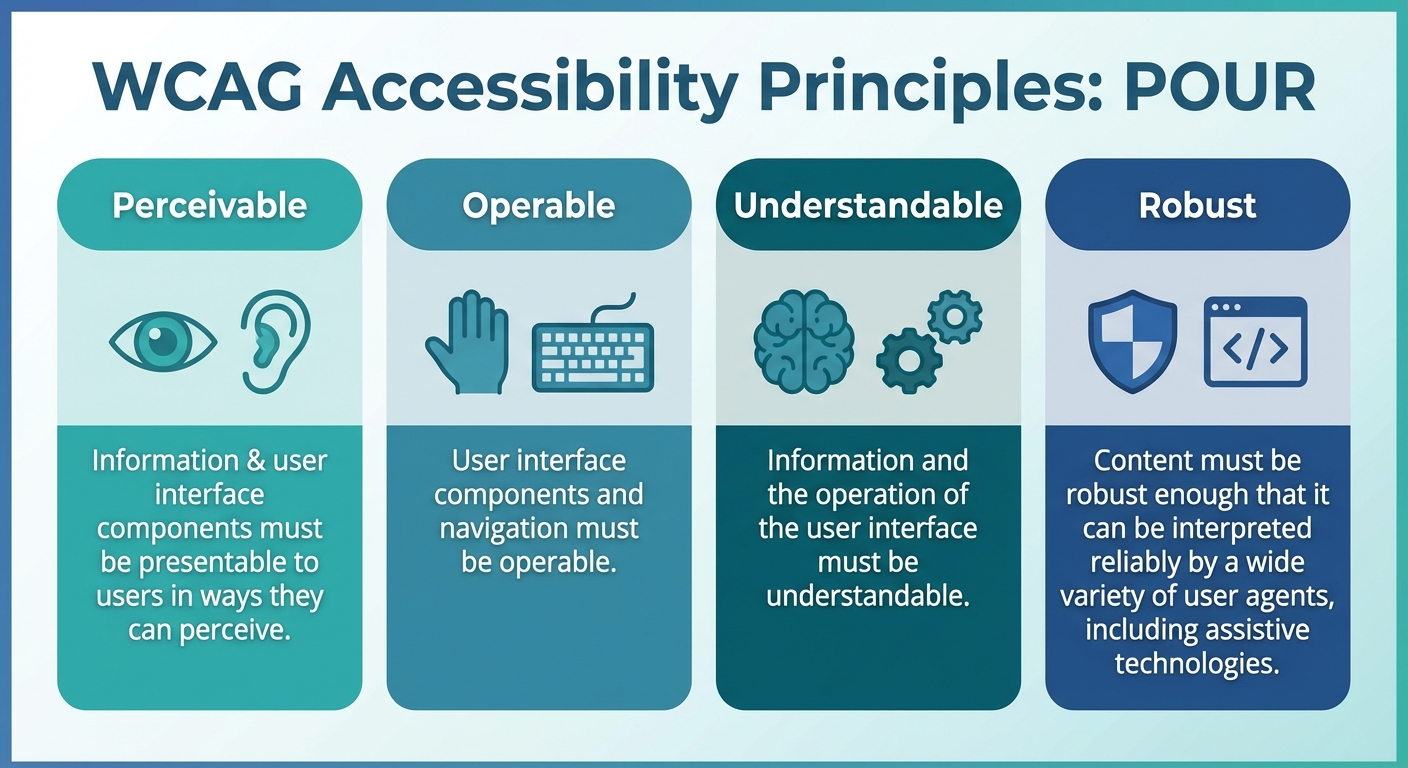
The Four POUR Principles
WCAG is organized around four fundamental principles—if any of these fail, users with disabilities cannot access your content:
1. Perceivable Information must be presentable in ways users can perceive. This means:
- Text alternatives for non-text content (images, videos, audio)
- Captions and transcripts for multimedia
- Content that can be presented in different ways without losing meaning
- Sufficient color contrast and distinguishable content
2. Operable Users must be able to operate the interface. This includes:
- All functionality available via keyboard
- Enough time to read and interact with content
- No content that causes seizures or physical reactions
- Clear navigation and findable content
3. Understandable Information and interface operation must be understandable:
- Readable text (appropriate reading level)
- Predictable page behavior
- Help users avoid and correct mistakes
- Consistent navigation and identification
4. Robust Content must be robust enough for reliable interpretation by assistive technologies:
- Valid, clean HTML
- Proper use of ARIA labels when needed
- Compatibility with current and future assistive tools
WCAG Conformance Levels
WCAG defines three levels of conformance:
| Level | Description | Who Needs It |
|---|---|---|
| A | Minimum accessibility | Everyone (baseline) |
| AA | Standard compliance | Most businesses, government sites |
| AAA | Enhanced accessibility | Specialized sites, maximum inclusion |
Most businesses should target WCAG 2.1 Level AA—this is what courts typically reference and provides solid protection while remaining achievable.
The Accessibility Quick-Start Checklist
Here are the most common accessibility issues and how to fix them, organized by priority:
Critical Issues (Fix First)
Images Without Alt Text Every meaningful image needs alternative text describing its content or purpose.
<!-- Bad -->
<img src="team-photo.jpg" />

<!-- Good -->
<img src="team-photo.jpg" alt="Monsoft Solutions team members collaborating in our Naples office" />

<!-- Decorative images should have empty alt -->
<img src="decorative-divider.png" alt="" />
Missing Form Labels Screen readers rely on labels to explain what each form field is for.
<!-- Bad -->
<input type="email" placeholder="Enter your email" />

<!-- Good -->
<label for="email">Email Address</label>
<input type="email" id="email" name="email" />
Poor Color Contrast Text must have sufficient contrast against its background. WCAG AA requires:
- 4.5:1 ratio for normal text
- 3:1 ratio for large text (18pt+ or 14pt bold)
No Keyboard Navigation Users who can’t use a mouse rely on keyboard navigation. Test your site by pressing Tab through the entire page—can you access everything?
High-Priority Issues
Missing Skip Links Allow keyboard users to skip repetitive navigation and jump to main content.
<a href="#main-content" class="skip-link">Skip to main content</a>
<!-- ... navigation ... -->
<main id="main-content"></main>
Incorrect Heading Hierarchy Headings must follow a logical order (H1 → H2 → H3). Don’t skip levels or use headings just for styling.
<!-- Bad -->
<h1>Welcome</h1>
<h4>Our Services</h4>
<!-- Skipped h2 and h3 -->

<!-- Good -->
<h1>Welcome</h1>
<h2>Our Services</h2>
Links That Say “Click Here” Screen reader users often navigate by links alone. “Click here” tells them nothing.
<!-- Bad -->
<a href="/pricing">Click here</a> to view our pricing.

<!-- Good -->
<a href="/pricing">View our pricing options</a>
Missing Video Captions All video content needs accurate captions. Auto-generated captions are a start but require editing for accuracy.
Medium-Priority Issues
No Focus Indicators When users tab through your site, they need to see which element is focused. Never remove focus outlines without providing an alternative.
/* Bad - removes all focus indicators */
*:focus {
  outline: none;
}

/* Good - custom focus style that's visible */
*:focus {
  outline: 2px solid #0066cc;
  outline-offset: 2px;
}
Time-Outs Without Warning If sessions expire, warn users and give them the option to extend time.
Non-Descriptive Error Messages “Error” doesn’t help anyone. Explain what went wrong and how to fix it.
<!-- Bad -->
<span class="error">Error</span>

<!-- Good -->
<span class="error">Please enter a valid email address (example: name@company.com)</span>
Testing Your Website for Accessibility
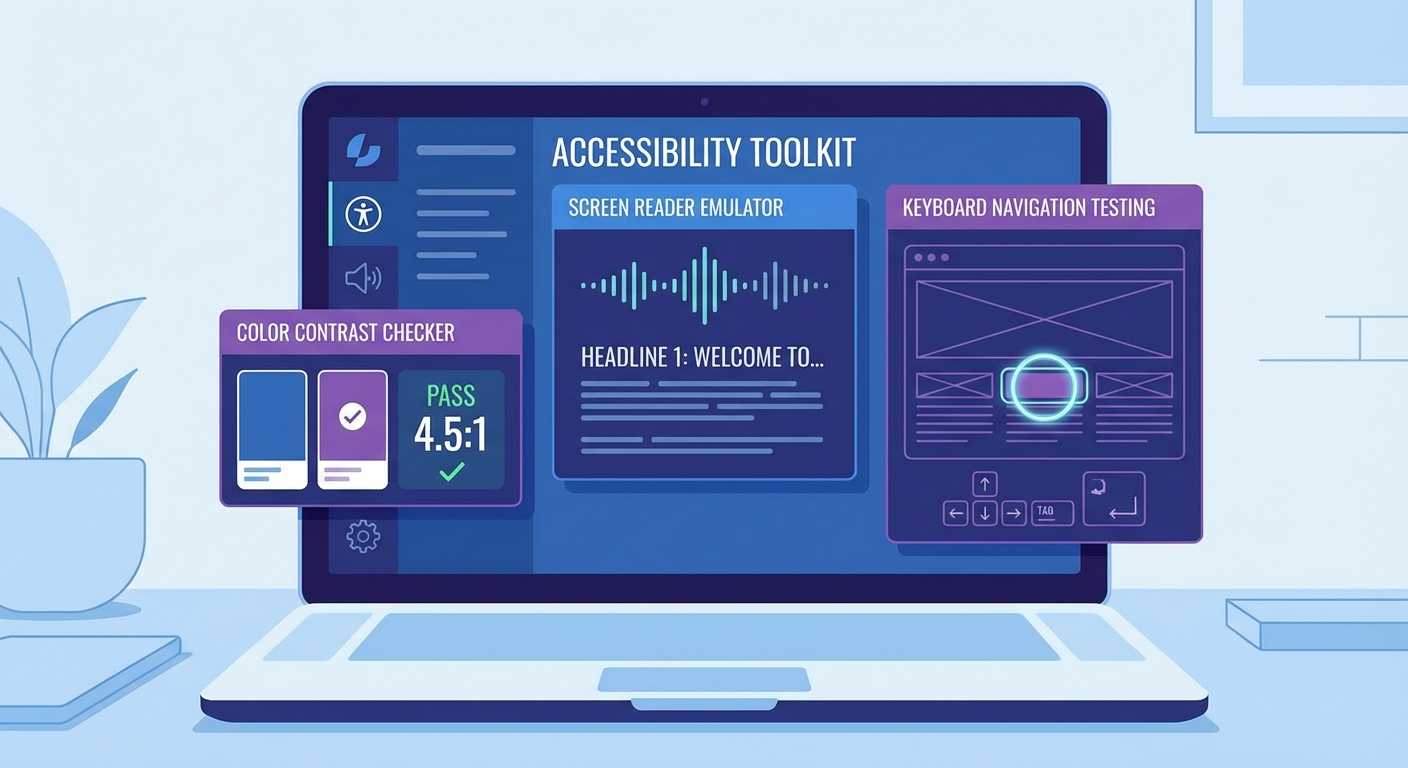
Automated tools catch roughly 30-40% of accessibility issues. You need a combination of automated testing, manual testing, and ideally, testing with actual users of assistive technology.
Automated Testing Tools
Browser Extensions (Free)
- axe DevTools — Comprehensive automated testing, highlights issues in context
- WAVE — Visual feedback showing errors directly on the page
- Lighthouse — Built into Chrome DevTools, includes accessibility audit
Online Scanners
- WebAIM WAVE — Free page analysis
- accessiBe’s accessScan — Quick compliance overview
- Deque’s axe Monitor — Enterprise-level scanning
Manual Testing Checklist
Automated tools can’t catch everything. Perform these manual tests:
Keyboard Navigation Test
- Put your mouse away
- Tab through your entire site
- Check: Can you reach every interactive element?
- Check: Can you always see which element is focused?
- Check: Is the tab order logical?
Screen Reader Test Download a free screen reader and navigate your site:
- NVDA (Windows, free)
- VoiceOver (Mac/iOS, built-in)
- TalkBack (Android, built-in)
Listen for:
- Are images described meaningfully?
- Do form fields announce their labels?
- Are buttons and links clear about their purpose?
Zoom Test Zoom to 200% in your browser. Your content should:
- Reflow without horizontal scrolling
- Remain readable
- Keep all functionality accessible
Color Contrast Test Use tools like WebAIM’s Contrast Checker to verify:
- All text meets minimum contrast ratios
- Color isn’t the only way information is conveyed
Creating an Accessibility Audit Process
For ongoing compliance, establish a regular testing schedule:
| Frequency | Task |
|---|---|
| Weekly | Run automated scan on key pages |
| Monthly | Manual keyboard/screen reader testing |
| Quarterly | Full site audit |
| Before launch | Comprehensive review of new features |
Implementation: Making Your Site Accessible
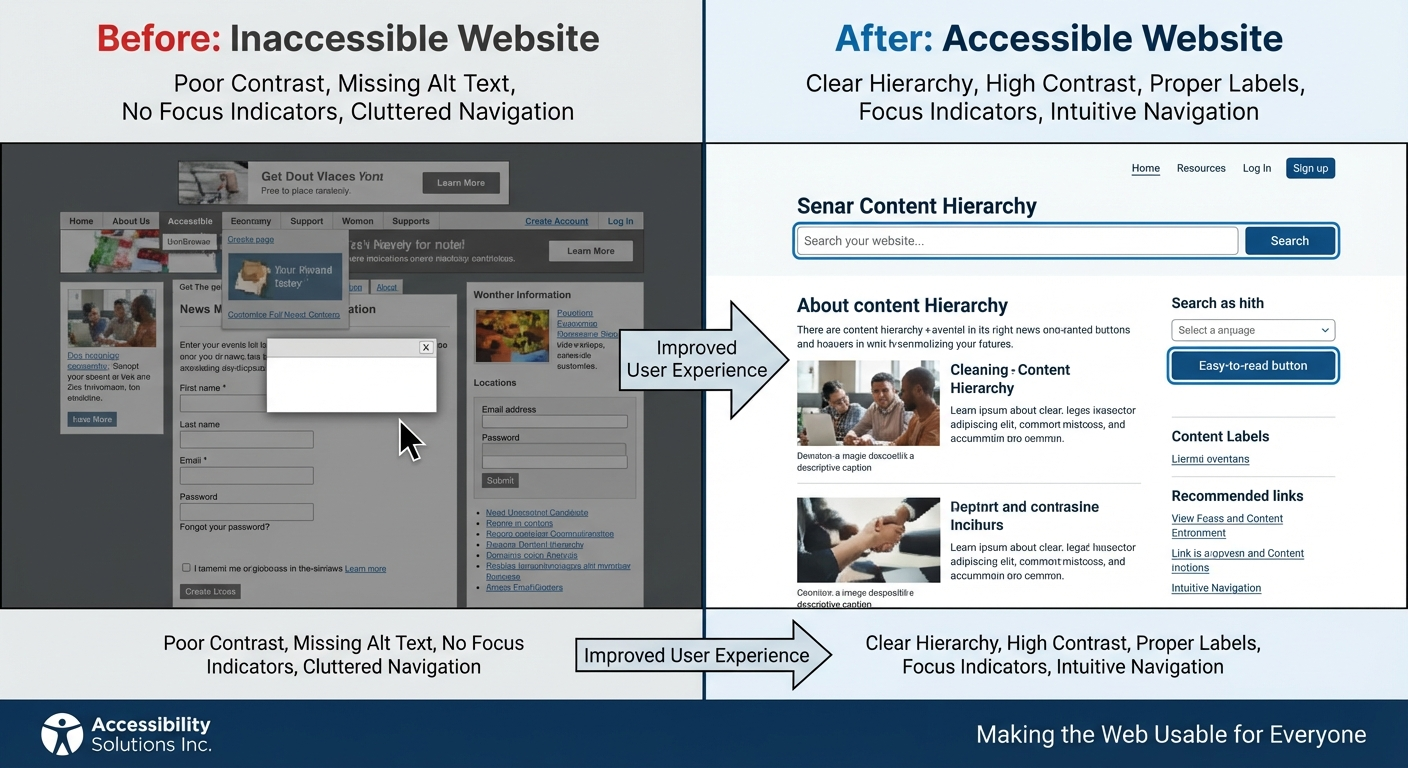
Quick Wins You Can Implement Today
1. Add Alt Text to All Images Go through your site systematically. Describe what’s in the image and why it matters:
- Product photos: describe the product and key features
- Team photos: include names and roles
- Charts/graphs: summarize the data being shown
- Decorative images: use empty alt (
alt="")
2. Check Your Color Contrast Use a contrast checker on your primary text and background combinations. If anything fails, adjust colors or increase font size.
3. Add Visible Focus States Add this CSS if you don’t have custom focus styles:
:focus-visible {
  outline: 3px solid #0066cc;
  outline-offset: 2px;
}
4. Label All Form Fields Every input needs a visible label. Placeholders alone don’t count—they disappear when users start typing.
5. Add a Skip Link Place a “Skip to main content” link as the first focusable element on each page.
Working with Developers
If you’re working with a development team, include accessibility requirements in your project specifications:
- Reference WCAG 2.1 AA as the standard
- Include accessibility testing in the QA process
- Require automated testing before deployment
- Budget for periodic accessibility audits
Choosing Accessible Platforms
If you’re building a new site or choosing platforms for your business:
CMS Considerations:
- WordPress with accessible themes (Theme Check plugin)
- Webflow has strong accessibility features built-in
- Custom builds should follow WCAG from the start
Third-Party Widgets: Before adding any widget, check if it’s accessible:
- Chat widgets
- Booking systems
- Payment processors
- Analytics pop-ups
Maintaining Accessibility Over Time
Accessibility isn’t one-and-done. New content and features can introduce issues:
- Train your team on accessibility basics
- Create content guidelines for writers and editors
- Test new features before launching
- Monitor automated alerts from scanning tools
- Review after platform updates (CMS, plugins, themes)
Common Myths About Website Accessibility
Myth: “Accessibility is too expensive” Reality: Building accessibility into new projects adds minimal cost (typically 1-3%). Retrofitting is more expensive, but still cheaper than a lawsuit.
Myth: “We don’t have disabled customers” Reality: You don’t know that. Many disabilities are invisible, and people with accessibility needs often quietly leave sites they can’t use.
Myth: “Overlay widgets make sites accessible” Reality: Accessibility overlays (widgets that claim to “fix” accessibility with one line of code) don’t work. They often make sites less accessible and have been the target of multiple lawsuits.
Myth: “Accessible design looks ugly” Reality: Accessibility and beautiful design aren’t mutually exclusive. Many award-winning websites are fully accessible.
Myth: “Small businesses are exempt” Reality: ADA applies to businesses of all sizes. The majority of accessibility lawsuits target small to medium businesses.
Getting Help with Accessibility
If your site needs significant work, consider:
Professional Accessibility Audits A thorough audit by accessibility specialists identifies all issues and provides prioritized remediation guidance.
Accessibility-Focused Development Work with developers who understand WCAG and can implement fixes correctly the first time.
Ongoing Monitoring Services that continuously scan your site and alert you to new issues before they become legal problems.
Take Action This Week
Website accessibility protects your business legally, expands your customer base, improves your SEO, and creates a better experience for everyone. Here’s how to start:
- Run an automated scan using WAVE or axe DevTools
- Fix the critical issues identified (usually images, forms, and contrast)
- Do a keyboard test of your most important pages
- Create a remediation plan for remaining issues
- Establish ongoing testing in your workflow
Need help making your website accessible and ADA compliant? Contact Monsoft Solutions for a comprehensive accessibility audit and remediation plan tailored to your business.
Frequently Asked Questions
What is ADA website compliance?
ADA website compliance means making your website accessible to people with disabilities as required by the Americans with Disabilities Act. This typically involves following WCAG 2.1 Level AA guidelines, which cover aspects like alt text for images, keyboard navigation, color contrast, and screen reader compatibility. Non-compliant websites risk lawsuits with settlements averaging $10,000-$50,000.
How do I know if my website is ADA compliant?
Run automated accessibility tests using free tools like WAVE or axe DevTools, which identify common issues. Then perform manual testing: navigate using only your keyboard, test with a screen reader, and check color contrast ratios. For comprehensive assurance, consider a professional accessibility audit that combines automated scanning with expert review and user testing.
How much does it cost to make a website accessible?
Costs vary based on site complexity and current state. Simple fixes like adding alt text and form labels can be done in-house for free. More extensive remediation typically ranges from $2,000-$15,000 for small business sites. Building accessibility into new projects adds roughly 1-3% to development costs—far less than retrofitting or facing legal action.
Are accessibility overlay widgets worth using?
No. Accessibility overlay widgets—JavaScript tools that claim to make sites compliant with one click—don’t actually fix underlying code issues. Advocacy groups have criticized them, courts have ruled against companies using them, and they often create new barriers for assistive technology users. Invest in proper remediation instead.
What happens if I ignore website accessibility?
Ignoring accessibility exposes your business to ADA lawsuits, which don’t require proof of actual damages. Settlements typically range from $5,000-$75,000 plus legal fees, and you’ll still need to fix the accessibility issues. Beyond legal risk, you’re excluding millions of potential customers and missing SEO benefits that accessible sites naturally receive.